How to Deploy Dify in 20 Minutes: A Hands-On Guide to Building a RAG Knowledge Base
A practical step-by-step tutorial on deploying the Dify AI platform locally using Docker Compose and creating a Retrieval-Augmented Generation (RAG) application through a zero-code visual interface. Covers environment prerequisites, setup, RAG pipeline orchestration, API integration, and common troubleshooting tips.
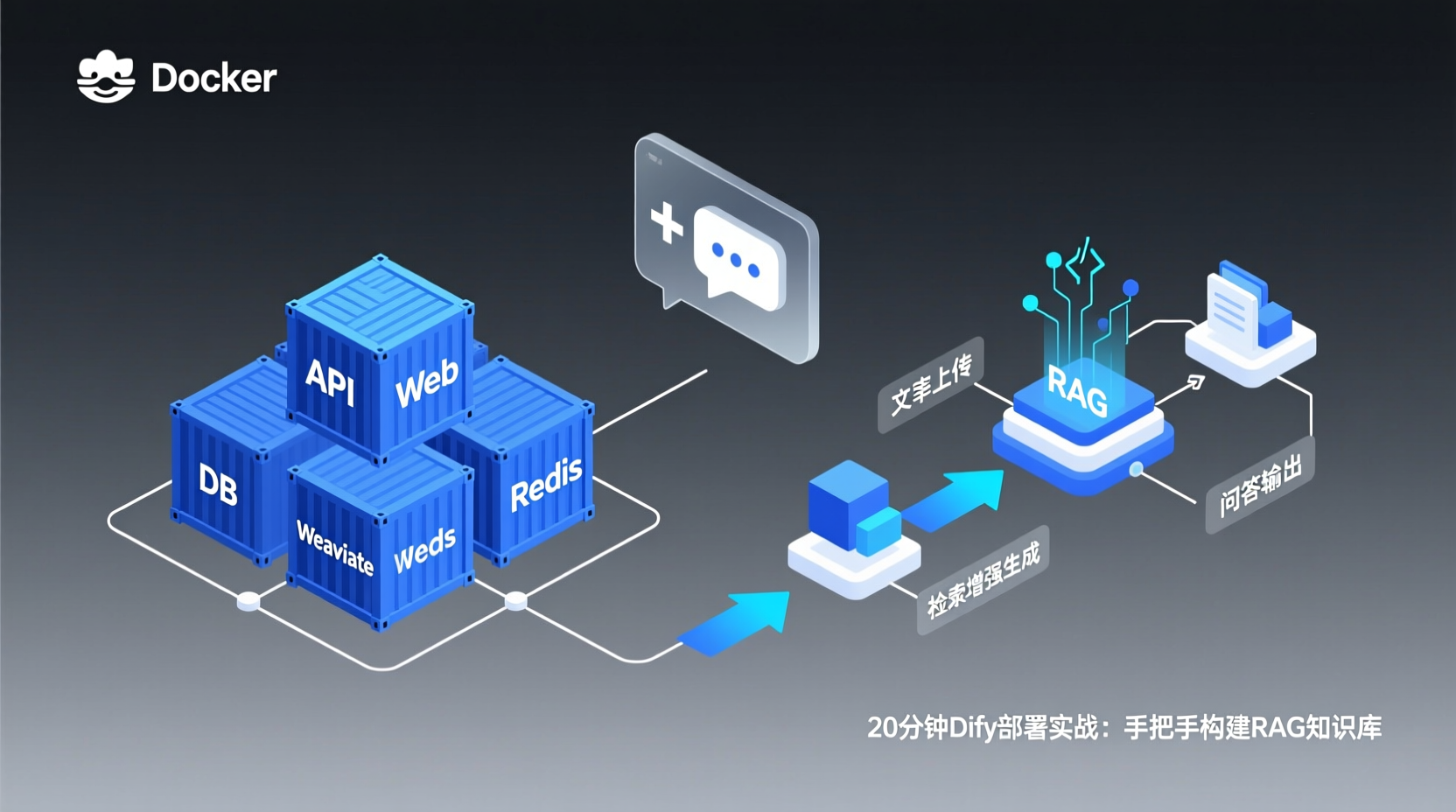
Hello everyone, I'm Zhou Xiaoma. After 8 years in backend development and recently leading my team through several AI projects, my biggest takeaway is this: while the barrier to entry for AI development is dropping rapidly, building a reliable, business-ready AI application platform from scratch still requires significant tinkering. If you've ever faced these scenarios:
- You want to quickly build a smart customer service bot but your team lacks dedicated frontend or algorithm engineers.
- You want a knowledge base Q&A system based on internal PDFs/Word documents but don't want to code a RAG pipeline from scratch.
- Your boss asks you to "see if we can integrate LLMs ASAP," and you need a demo-able, fast-iteration solution.
This tutorial is for you. In the next few minutes, I'll walk you through deploying Dify locally using Docker Compose, then building a private-document-based RAG Q&A application from the ground up. The entire process requires zero coding and is completed entirely through a visual interface.
Prerequisites
Before we begin, ensure your machine meets the following minimum requirements (official Dify specs):
- CPU: ≥ 2 cores
- RAM: ≥ 4 GiB
- Docker (20.10+) and Docker Compose (2.0+) installed
Why 4 GiB minimum? Dify's local deployment spins up multiple containers simultaneously: backend API service, frontend web UI, PostgreSQL, Redis, and Weaviate (vector database). Insufficient memory will likely trigger OOM (Out of Memory) kills.
Step 1: Clone the Repository & Start Services
Open your terminal, clone the repository, and navigate to the docker directory:
bash
git clone https://github.com/langgenius/dify.git
cd dify/docker
Copy the environment variable template and start everything with one command:
bash
cp .env.example .env
docker compose up -d
What's happening here? The .env file contains critical configurations like database passwords and service ports. cp .env.example .env generates a default configuration that works out-of-the-box for most local development scenarios. docker compose up -d launches all dependencies in the background.
Initial startup pulls container images and may take 2-5 minutes depending on your network speed. Once complete, verify all containers are running properly:
bash
docker compose psAll container statuses should show running or Up (you should at least see api, web, db, redis, and weaviate).
Step 2: Initialize the Platform
After successful startup, open your browser and visit http://localhost/install to access Dify's initialization page. Follow the prompts to create an admin account and set up your initial workspace.
Once initialized, you'll be automatically redirected to the dashboard. You'll see the left navigation bar featuring modules like Explore, Studio, Knowledge, Tools, and Models. This is our "main battleground" for the rest of the tutorial.
Step 3: Hands-On Demo — Building a RAG Q&A Application
This is the core of today's guide. Assume you have a company "Employee Handbook.pdf" and want an AI to automatically answer employee policy questions.
1. Configure the Model
Navigate to the Models page → select OpenAI (or another integrated provider) → enter your API Key. For users in regions with restricted access to OpenAI, Dify supports domestic LLMs compatible with the OpenAI API (e.g., Qwen, Zhipu AI), which can be found directly in the provider list.
Why configure models first? All subsequent AI capabilities depend on this setup. Think of it as "plugging in" the system's brain.
2. Create the Knowledge Base
Click Knowledge on the left sidebar → Create Knowledge Base → upload your PDF/Word/TXT files.
After uploading, Dify guides you through chunking settings and Embedding Model selection. Chunking determines how long each text block will be; the default Automatic mode is highly recommended to start. The embedding model converts text into vector representations; choose one from the same vendor as your knowledge base for optimal compatibility.
Once processing completes, your document is transformed into a "searchable" knowledge base.
3. Orchestrate the Q&A App
Return to Studio → Create App → select Chat App.
In the orchestration interface, you'll see a visual workflow canvas:
- Add a Knowledge Retrieval node and select the knowledge base you just created.
- Add an LLM Answer node and configure the prompt context to reference
$knowledge#. - Connect the nodes logically: User Input → Knowledge Retrieval → LLM Answer → Output.
Click Save → Publish, and you'll see a live test chat window on the right.
Try asking a question from your uploaded document. Dify will retrieve relevant context from the knowledge base and instruct the LLM to generate a grounded answer. This is a classic RAG (Retrieval-Augmented Generation) pipeline, but every step is accomplished via drag-and-drop in the UI.
4. Expose the API for Your Business Systems
After publishing, the Overview page displays your API endpoint and secret key. Dify provides a standard REST API that you can call directly using Python, Java, Go, or any HTTP client. This allows you to embed AI capabilities directly into existing OA, customer service, or CRM systems. This is precisely where Dify delivers its "Backend-as-a-Service" value.
Troubleshooting & Pro Tips
- Port Conflicts: Dify defaults to ports
80and443. If your machine already runs Nginx or other web services, modifyEXPOSE_NGINX_PORTin your.envfile. - Invalid Model Key: Accessing OpenAI from certain regions may require proxies or mirror endpoints. Start with compatible local APIs (e.g., Zhipu, Qwen) for rapid testing, then switch to production models once the pipeline is verified.
- Container Startup Failures: Run
docker compose logs -fto inspect specific errors. The most common issue is PostgreSQL taking longer to initialize on first run; simply wait 1-2 minutes and refresh the initialization page. - Empty Knowledge Base Retrieval: Verify the embedding model is configured correctly and chunking settings are appropriate. Documents smaller than ~500 characters will significantly degrade retrieval performance due to insufficient semantic context.
Summary
Let's recap the steps we covered today:
git clone+docker compose up -dfor one-click local deployment.- Browser-based initialization at
http://localhost/install. - Configure model → upload documents → create knowledge base → visually orchestrate Q&A app → publish.
The entire workflow from deployment to a live application takes under 20 minutes. For backend developers, Dify's biggest appeal is that it productizes RAG pipelines, Agent configurations, and LLMOps monitoring. You no longer need to write glue code or stress over vector database selection, freeing you to focus purely on business logic and user experience.
What to Explore Next
- Create Agent Workflows in Dify, integrating 50+ built-in tools like Google Search, Web Browsing, and Code Execution.
- Connect your published app via REST API to your Spring Boot or Express.js backend.
- Set up LLMOps monitoring dashboards to track token consumption, latency, and cost per request.
If you encounter any issues during deployment or usage, Dify's GitHub Issues and community Discord are highly active. Most common errors already have documented solutions. Give it a try, and feel free to share your questions or results in the comments below.