Windows Terminal: Microsoft's Love Letter to Developers
An in-depth look at Windows Terminal – Microsoft's modern, open-source terminal that finally brings a polished command-line experience to Windows. Covers its architecture (C++, WinRT, UWP), key features like GPU-accelerated rendering and multi-tab support, and why it matters even for Java developers.
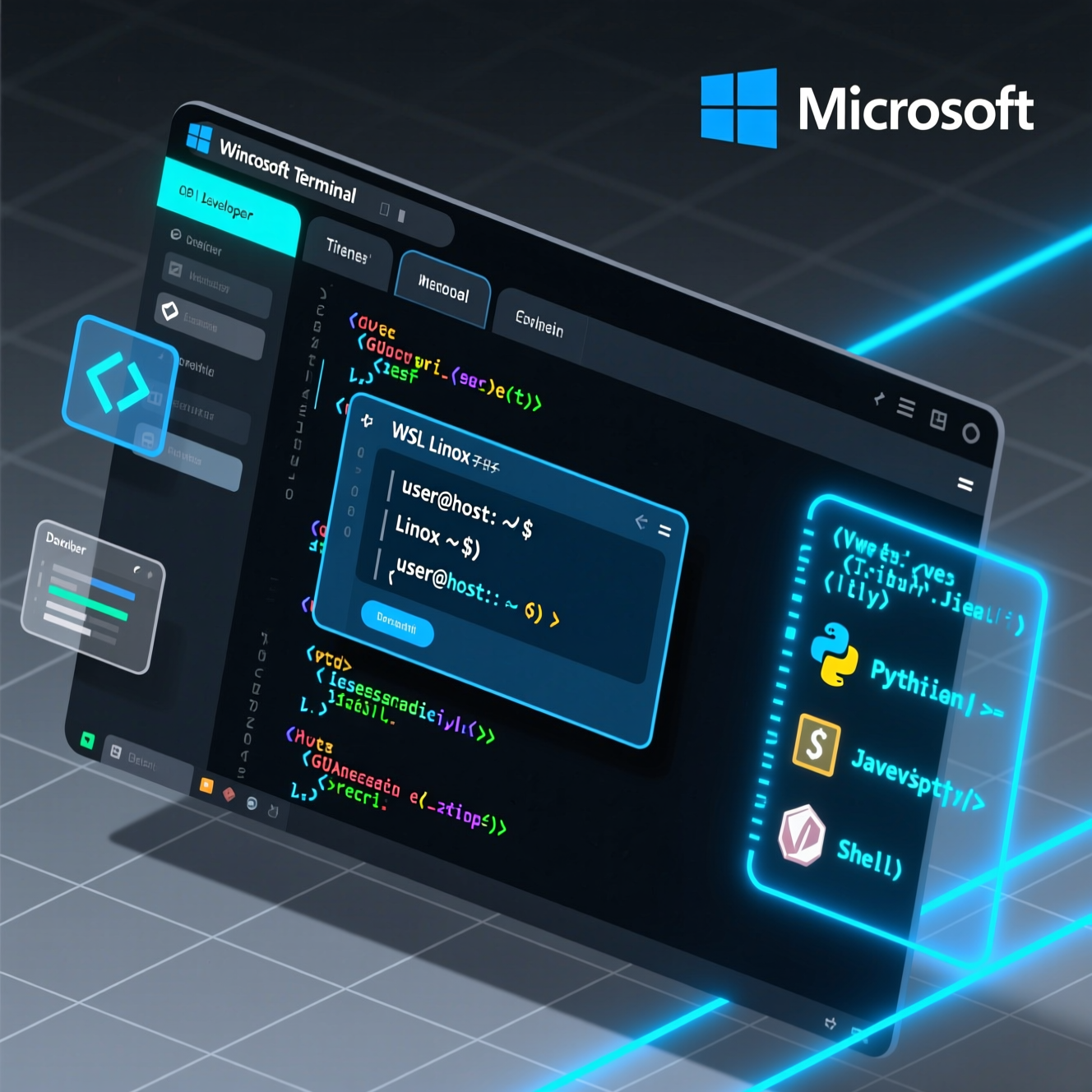
As a Java veteran who’s been wrestling with Spring Boot for eight years, today I want to talk about Microsoft’s Windows Terminal—the tool that finally lets me type commands on Windows with dignity.
Honestly, before this, opening CMD or PowerShell on Windows always felt like showing up to a wedding in flip-flops: the functionality was there, but it just didn’t feel right. Then Windows Terminal arrived, and I realized—Microsoft actually gets developers!
What Problem Does It Solve?
In short, Windows Terminal is a complete modernization of the traditional Windows console (conhost.exe). The old console, burdened by decades of backward compatibility, couldn’t even render emojis properly. Windows Terminal sheds that legacy baggage and delivers:
- Multi-tab support (no more juggling dozens of windows!)
- True Unicode and emoji support
- GPU-accelerated rendering (buttery smooth)
- Highly customizable themes, fonts, and keyboard shortcuts
- Support for multiple shells: WSL, PowerShell, CMD, Azure Cloud Shell, and more
It’s like upgrading from a Nokia 3310 to an iPhone—not because it has vastly more features, but because the experience is elevated to another dimension.
Technical Architecture Highlights
Even though I’m a Java person, after reading the project’s README and documentation, I have to tip my hat to Microsoft’s engineering design.
1. Modular Design + Shared Components
The repo doesn’t just contain the new Terminal—it also includes the source code for the legacy conhost.exe, plus core components shared between both. For example:
- A text rendering engine based on DirectWrite
- Text buffers supporting UTF-16/UTF-8
- VT (ANSI escape sequence) parser and emitter
- ConPTY (pseudo-terminal) infrastructure
These components are abstracted into reusable modules. This not only modernizes the old console (e.g., adding 24-bit color) but also provides a solid foundation for the new Terminal. This “refactor, don’t rewrite” strategy is a textbook example of how to modernize large legacy systems.
2. C++ + WinRT + UWP
The project uses modern C++ (enhanced with the WIL library for safety) and is built as a UWP app. This allows it to leverage Windows 11 features while enabling sandboxing and auto-updates via MSIX packaging. While I still have emotional scars from C++ templates and pointers, I must admit: for system-level tools, C++ remains king.
3. Embeddable Terminal Control
What surprised me most is that the Terminal’s core is designed as a reusable UI control! Other Windows apps can embed this terminal just like a WebView. This is brilliant—it transforms the terminal from an “application” into a “component,” unlocking endless integration possibilities.
Installation & Usage: Easier Than Instant Noodles
As an end user, you don’t need to compile from source. Installation options abound:
Recommended: Microsoft Store
One-click install, automatic updates—effortless. This is the way Microsoft wants you to use it.
Alternatives: winget, Chocolatey, Scoop
If you’re a package manager enthusiast, this single command suffices:
powershell
winget install --id Microsoft.WindowsTerminal -eOr with Chocolatey:
powershell
choco install microsoft-windows-terminalManual Install (GitHub Release)
As a last resort, download the .msixbundle file from GitHub and install manually:
powershell
Add-AppxPackage Microsoft.WindowsTerminal_<versionNumber>.msixbundle⚠️ Note: Manual installation won’t auto-update and may require the VC++ runtime libraries.
Configuration Freedom: Off the Charts
Windows Terminal uses a settings.json file, letting you customize:
- Default shell (WSL? PowerShell 7? Git Bash?)
- Font (highly recommend Cascadia Code, Microsoft’s monospace font designed specifically for terminals)
- Color schemes (dozens built-in, plus support for importing iTerm2 themes)
- Keyboard shortcuts (e.g., Ctrl+Shift+T for a new tab)
- Transparency and background images (yes, you can put a cat photo behind your terminal)
While the README doesn’t include config examples directly, the official docs (aka.ms/terminal-docs) are full of them. For instance, setting WSL as the default profile:
json
{
  "defaultProfile": "{c6eaf9f4-32a7-5fdc-b5cf-066e8a4b1e40}",
  "profiles": {
    "list": [
      {
        "guid": "{c6eaf9f4-32a7-5fdc-b5cf-066e8a4b1e40}",
        "name": "Ubuntu",
        "commandline": "wsl.exe -d Ubuntu",
        "hidden": false
      }
    ]
  }
}
Special Value for Java Developers
You might ask: “I write Java—why should I care?”
Actually, it matters a lot!
- Better local development experience: With WSL2 + Windows Terminal + IntelliJ IDEA, you get a dev workflow on Windows that rivals macOS/Linux.
- More efficient debugging: Multi-tabs let you monitor logs, run scripts, and query databases simultaneously—no more Alt+Tab until your fingers cramp.
- Learn systems programming: If you want to understand Windows internals (e.g., how ConPTY bridges Unix ptys), this project is an excellent study material.
Is It Worth Deep Diving?
If you’re just a user—install it and enjoy. No need to go deeper.
But if you’re curious about systems programming, terminal technology, or Windows internals, this project is absolutely worth cloning and reading. The code is well-organized, documentation is thorough, and detailed guides like STYLE.md and ORGANIZATION.md help contributors get up to speed.
Just a heads-up: building it requires VS2022 + Windows 11 SDK + UWP workload, so the setup has a learning curve. Impressively, the README even includes a winget configure script to set up your dev environment in one go—Microsoft really nails developer experience.
One Minor Complaint
My only gripe: it only runs on Windows 10 version 2004 (build 19041) or later. If you’re stuck on an older Windows version (common in some enterprise environments), you’ll have to keep using the old console. But hey—it’s 2025. Time to upgrade, folks!
In summary, Windows Terminal isn’t a flashy demo—it’s a practical tool that solves real daily pain points for developers. It proves that even a giant like Microsoft can build elegant, modern, user-centric open-source software.
So stop using CMD. Go install Windows Terminal from the Microsoft Store right now—your fingers will thank you.