How to Generate Professional HTML Slides from Markdown in 10 Minutes with AI Agent Skills
Learn how to leverage guizang-ppt-skill and AI coding agents to instantly transform Markdown content into beautifully formatted HTML presentations, complete with AI-generated image prompts and a lightweight WebGL runtime.
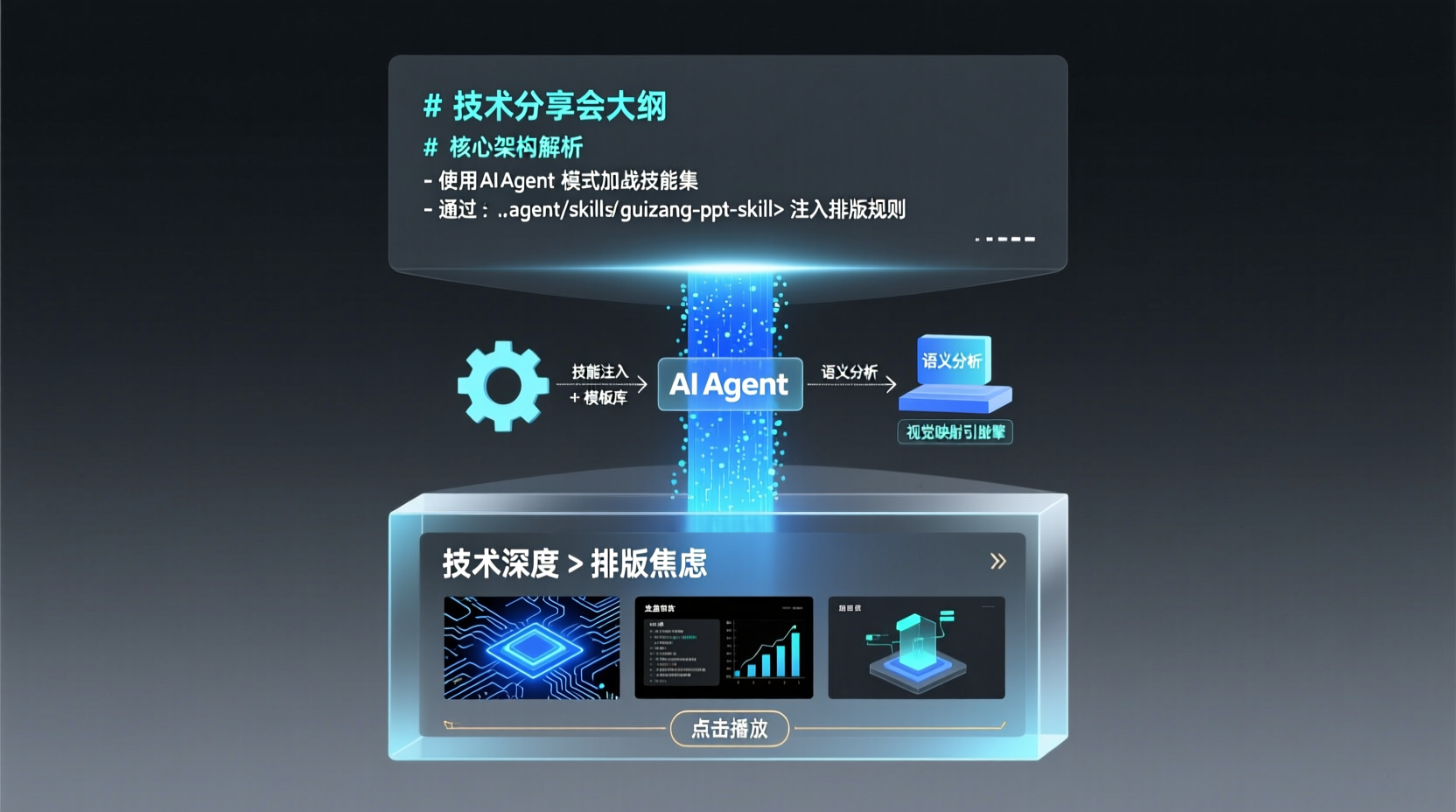
Banish PPT Formatting Anxiety: Generate Professional HTML Slides in 10 Minutes with an AI Agent Skill
As a backend developer who has spent over 8 years writing Java, what I dread most isn't an out-of-memory (OOM) crash in production. It's the sudden message: "Hey, there's a report this afternoon, can you whip up a slide deck?" Opening traditional presentation software, fiddling with font sizes, aligning color blocks, and hunting for images easily eats up two hours. To make matters worse, many AI PPT generators online produce layouts that scream "template"—too ugly to use in an actual meeting.
Today, I'll show you how to use the open-source guizang-ppt-skill to completely streamline the workflow: Write Markdown → AI auto-formats & generates images → Outputs high-quality HTML slides. After reading this, you only need to focus on your core content. Leave the layout and visuals to AI, and you'll have a professional, presentation-ready slide deck in just 10 minutes.
Prerequisites: What You Need
- AI Coding Tool with Agent Skill Support: Such as Claude Code, Cursor (Agent Mode), or GitHub Copilot Agents. This Skill is essentially a set of instructions and template libraries for the AI, not a traditional executable program.
- Basic Markdown Proficiency: You just need to be comfortable using
#for headings,-for bullet points, and---for slide separators. - Node.js Environment (Optional): Required if you want to locally run the built-in low-power WebGL presentation runtime (Node 18+). Generating pure HTML does not require installation.
Quick Start: Run the Workflow in 3 Steps
Step 1: Import the Skill into Your AI Workspace
Why clone directly into a specific directory? Because modern AI Agents actively scan the .agent/skills path, automatically loading SKILL.md and its templates into the system context. This prevents the AI from hallucinating layouts and forces it to strictly follow predefined design rules.
Run this in your project root:
bash
mkdir -p .agent/skills && git clone https://github.com/op7418/guizang-ppt-skill.git .agent/skills/guizang-ppt-skillStep 2: Define Your Content Structure
Create a new presentation.md file. Remember the core principle: Structure first, visuals later. AI excels at mapping structural hierarchy to design. Avoid hardcoding HTML tags directly in Markdown.
Tip: Use
---to strictly separate each slide. The AI will parse this into independent Canvas nodes.
Step 3: Trigger the Skill Generation
In your AI chat/dialogue box, input:
Load guizang-ppt-skill and convert presentation.md into an HTML slide deck. Use the Swiss layout style, generate Image Prompt placeholders based on semantic context, and package the WebGL runtime.
The AI will read the Skill documentation, automatically apply grid layouts, typographic hierarchies, and color contrast rules, and output an index.html file. Double-click to preview it in your browser. It supports keyboard navigation, has a tiny file size (usually < 500KB), and won't lag during screen sharing.
Practical Example: Building a "Spring AI Gateway in Practice" Tech Talk from Scratch
Imagine you need to present a technical deep-dive to your team. Follow these steps:
- Set the Template: Explicitly specify
layout: Editorialin your prompt. This style features generous whitespace and strong typographic contrast, making it ideal for architecture diagrams. - Control Visuals with Prompts: In your Markdown, add:
. The Skill's built-in translator will convert this into a standard drawing prompt embedded in the HTML, ready for one-click integration with Midjourney or DALL-E later. - Run & Preview: Navigate to the generated directory and run
npm run serve. You'll see smooth transition animations with GPU usage under 3% on ultrabooks, perfectly optimized for remote meetings and large-format displays.
FAQs & Troubleshooting
- Chinese text rendering incorrectly? The default font stack prioritizes English. Append
font-family: "PingFang SC", "Microsoft YaHei", sans-serifto your prompt. The AI will automatically inject CSS variables to override it. - Image generation taking too long? It's recommended to first generate the HTML with placeholder geometric shapes to lock in the layout. Once verified, batch-replace them with actual images.
- How to change brand colors? Locate the
<style>block in the generated file and modify the--primaryand--bgvariables under:root. CSS variables apply globally, so changing them in one place updates the entire deck.
Conclusion
The core philosophy of this workflow is "Let AI do what it's good at (layout, color theory, composition prompts), while you do what you're good at (content logic, technical depth)." With guizang-ppt-skill, you no longer need to battle clunky presentation software auto-formatters. Next time you face an urgent presentation: Write Markdown → Hand it to AI → Take the HTML to the conference room.
Next Step: Try modifying the templates/ directory to hardcode your company logo and brand colors, turning this into your team's proprietary presentation engine. Feel free to reach out if you have questions.