Monaco Editor: Build Browser Code Editors in JavaScript for Web Projects 2025
Monaco Editor, the JavaScript code editor powering VS Code, delivers the same robust capabilities as a leading browser code editor for 2025 web projects. Built on VS Code's trusted engine with 43,900+ GitHub stars, this Microsoft-developed tool enables seamless web integration, letting developers build powerful code editing features directly in browsers. Perfect for creating robust web code editor solutions efficiently.
Monaco Editor: The Power of VS Code in Your Web Browser - Complete Guide 2025
If you're building a web application that requires code editing capabilities, you've likely searched for the best browser code editor solution. Look no further than Monaco Editor – the same powerful JavaScript code editor that powers Visual Studio Code, now available for web integration. As of 2025, this Microsoft-developed JavaScript code editor continues to lead the industry with over 43,900 GitHub stars and a thriving community of developers. In this comprehensive guide, we'll explore how to leverage Monaco Editor to bring VS Code-like editing experiences to your web projects.
What is Monaco Editor?
The Monaco Editor is a fully-featured browser-based code editor developed by Microsoft. Born from the same codebase as VS Code, it brings the power of one of the most popular desktop code editors into web browsers. Unlike simpler JavaScript editor components, Monaco Editor delivers a near-native development experience with features that professional developers expect.
Since its initial release in 2016, Monaco has evolved into the gold standard for web code editor solutions. Its architecture allows it to run efficiently in browser environments while maintaining the performance and feature set that developers love from VS Code. Whether you're building an online IDE, a code sharing platform, or an educational tool, Monaco Editor provides the foundation for creating a professional coding experience directly in the browser.
Key Features of Monaco Editor
What sets Monaco Editor apart from other browser code editors? Let's explore its most powerful capabilities:
VS Code Heritage
As the core editor of VS Code, Monaco benefits from years of development by Microsoft's engineering team. This means it inherits all the sophisticated editing features that have made VS Code the preferred editor for millions of developers worldwide.
Rich Language Support
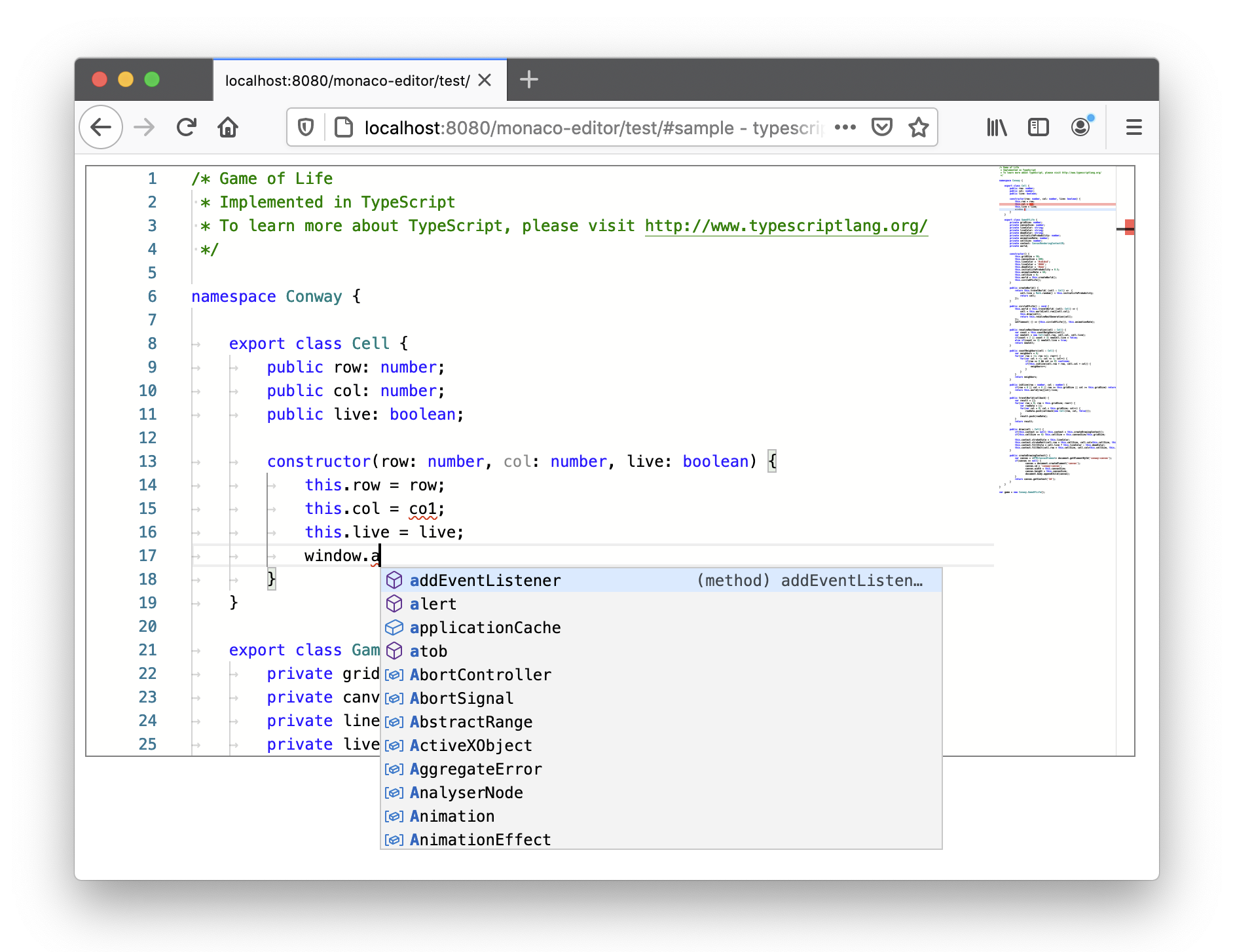
Monaco Editor provides syntax highlighting, code completion, and validation for over 50 programming languages, making it a versatile JavaScript code editor for any web development project.
Advanced Editing Capabilities
Monaco includes features that have become essential for modern development:
- Multiple cursor support for simultaneous edits
- IntelliSense with smart autocompletion
- Code folding and outlining
- Git integration with line history and blame
- Advanced search and replace with regex support
- Column selection mode
Performance Optimization
Despite its rich feature set, Monaco Editor is optimized for performance. It uses virtual rendering to handle large files efficiently, ensuring smooth scrolling and editing even with documents containing thousands of lines of code.
Customization Options
Developers can fully customize the editor's appearance and behavior:
- Theme support (light, dark, and custom themes)
- Font size and family configuration
- Keybinding customization
- Editor layout and toolbar configuration
- Whitespace and indentation settings
Getting Started with Monaco Editor
Integrating Monaco Editor into your web project is straightforward, thanks to its well-documented API and npm package.
Installation
The recommended way to install Monaco Editor is via npm:
bash
npm install monaco-editorThis gives you access to both the ESM (ECMAScript Module) version, which works seamlessly with modern build tools like webpack, and the TypeScript type definitions for type-safe development.
Basic Implementation
Here's a simple example of how to initialize a Monaco Editor instance in your web application:
javascript
import * as monaco from 'monaco-editor';

// Wait for the DOM to be fully loaded
document.addEventListener('DOMContentLoaded', () => {
  // Get the container element
  const container = document.getElementById('editor-container');

  // Initialize the editor
  const editor = monaco.editor.create(container, {
    value: '// Hello Monaco Editor!\nfunction welcome() {\n\treturn "Welcome to Monaco Editor";\n}',
    language: 'javascript',
    theme: 'vs-dark',
    minimap: { enabled: true },
    scrollBeyondLastLine: false,
    fontSize: 14
  });

  // Set the editor to fill the container
  editor.layout();

  // Example: Get the current content
  document.getElementById('get-content').addEventListener('click', () => {
    const content = editor.getValue();
    console.log('Editor content:', content);
  });
});
HTML Container
You'll need a container element in your HTML where the editor will be rendered:
html
<div id="editor-container" style="width: 800px; height: 600px; border: 1px solid #ccc;"></div>
<button id="get-content">Get Content</button>
Advanced Integration Scenarios
Monaco Editor Webpack Integration
For projects using webpack, you'll need to configure the appropriate loader for Monaco Editor. Here's a basic webpack configuration snippet:
javascript
const path = require('path');

module.exports = {
  resolve: {
    alias: {
      'monaco-editor$': path.resolve(__dirname, 'node_modules/monaco-editor/esm/vs/editor/editor.main.js')
    }
  },
  module: {
    rules: [
      {
        test: /\.css$/,
        use: ['style-loader', 'css-loader']
      },
      {
        test: /\.ttf$/,
        use: ['file-loader']
      }
    ]
  }
};
Using Monaco Editor with ESM
Monaco Editor provides excellent support for ECMAScript Modules, making it easy to integrate with modern JavaScript projects:
javascript
import * as monaco from 'monaco-editor/esm/vs/editor/editor.api.js';

// Configure language support
import 'monaco-editor/esm/vs/language/typescript/monaco.contribution.js';
import 'monaco-editor/esm/vs/basic-languages/javascript/javascript.contribution.js';

// Initialize the editor
const editor = monaco.editor.create(document.getElementById('container'), {
  value: 'function x() { console.log("Hello world!"); }',
  language: 'javascript'
});
Advanced Configuration and API
Monaco Editor's powerful API allows for deep customization and integration with your application.
Editor Configuration
You can configure nearly every aspect of the editor's behavior:
javascript
const editor = monaco.editor.create(container, {
  // Basic settings
  value: '',
  language: 'javascript',

  // Appearance
  theme: 'vs-dark',
  fontSize: 14,
  lineNumbers: 'on',
  roundedSelection: true,
  scrollBeyondLastLine: false,

  // Editing behavior
  cursorBlinking: 'smooth',
  cursorSmoothCaretAnimation: true,
  tabCompletion: 'on',
  wordWrap: 'on',

  // Minimap
  minimap: {
    enabled: true,
    scale: 1
  },

  // Scrollbar
  scrollbar: {
    verticalScrollbarSize: 10,
    horizontalScrollbarSize: 10,
    useShadows: true
  }
});
Working with the Monaco Editor API
The editor instance provides a rich API for interacting with the editor:
javascript
// Get the current content
const content = editor.getValue();

// Set new content
editor.setValue('// New content\nconsole.log("Hello Monaco!");');

// Get selected text
const selection = editor.getSelection();
const selectedText = editor.getModel().getValueInRange(selection);

// Listen for content changes
const disposable = editor.onDidChangeModelContent(event => {
  console.log('Content changed:', event);
});

// Remember to dispose when no longer needed
disposable.dispose();
Language-Specific Configuration
Monaco Editor allows for language-specific settings and support:
javascript
// Configure JavaScript-specific settings
monaco.languages.typescript.javascriptDefaults.setCompilerOptions({
  target: monaco.languages.typescript.ScriptTarget.ES2020,
  allowNonTsExtensions: true,
  moduleResolution: monaco.languages.typescript.ModuleResolutionKind.NodeJs,
  module: monaco.languages.typescript.ModuleKind.CommonJS,
  noEmit: true,
  esModuleInterop: true,
  jsx: monaco.languages.typescript.JsxEmit.React
});

// Add custom completion items for JavaScript
monaco.languages.registerCompletionItemProvider('javascript', {
  provideCompletionItems: (model, position) => {
    const suggestions = [
      {
        label: 'customFunction',
        kind: monaco.languages.CompletionItemKind.Function,
        insertText: 'customFunction(${1:parameters})',
        insertTextRules: monaco.languages.CompletionItemInsertTextRule.InsertAsSnippet,
        documentation: 'A custom function for our application'
      }
    ];
    return { suggestions: suggestions };
  }
});
Monaco Editor in Production: Best Practices
When deploying Monaco Editor to production, consider these best practices:
Bundle Size Optimization
Monaco Editor can add significant size to your bundle. To optimize:
javascript
// Import only what you need
import * as monaco from 'monaco-editor/esm/vs/editor/editor.api';
import 'monaco-editor/esm/vs/language/javascript/javascript.contribution';

// For webpack, use the monaco-editor-webpack-plugin
const MonacoWebpackPlugin = require('monaco-editor-webpack-plugin');

module.exports = {
  plugins: [
    new MonacoWebpackPlugin({
      // Specify only the languages you need
      languages: ['javascript', 'typescript', 'html', 'css'],
      // Specify only the features you need
      features: ['coreCommands', 'find']
    })
  ]
};
Handling Large Files
For applications that need to handle very large files, implement these optimizations:
javascript
const editor = monaco.editor.create(container, {
  value: largeFileContent,
  language: 'javascript',
  // Disable features that impact performance with large files
  minimap: { enabled: false },
  lineDecorationsWidth: 0,
  lineNumbersMinChars: 5,

  // Use a smaller font size
  fontSize: 12,

  // Configure model options for large files
  model: monaco.editor.createModel(largeFileContent, 'javascript', {
    // Disable undo/redo for extremely large files
    enableUndoRedo: false
  })
});
Accessibility Considerations
Ensure your Monaco Editor implementation is accessible to all users:
javascript
const editor = monaco.editor.create(container, {
  // Accessibility settings
  accessibilityPageSize: 10,
  accessibilitySupport: 'on',

  // High contrast theme option
  theme: userPrefersHighContrast ? 'hc-black' : 'vs-dark',

  // Keyboard navigation settings
  quickSuggestions: true,
  quickSuggestionsDelay: 100
});

// Add ARIA labels to the container
container.setAttribute('aria-label', 'Code editor with JavaScript syntax highlighting');
Monaco Editor vs. Alternatives
How does Monaco Editor compare to other popular browser-based code editors?
Monaco Editor vs. Ace Editor
- Monaco offers better performance for large files due to its virtual rendering engine
- Monaco provides deeper language support and better IntelliSense
- Ace has a smaller bundle size (around 250KB vs Monaco's 1.5MB+)
- Monaco offers better TypeScript and JavaScript support out of the box
Monaco Editor vs. CodeMirror
- Monaco has more advanced features, especially for modern web development
- CodeMirror is more lightweight and customizable at a core level
- Monaco offers better integration with VS Code extensions and themes
- CodeMirror has better mobile support
Monaco Editor vs. Sublime Text in Browser
- Monaco is actively maintained by Microsoft, while browser ports of Sublime are community-driven
- Monaco offers better web-specific features and APIs
- Monaco has better performance in browser environments
Real-World Applications of Monaco Editor
Monaco Editor powers code editing in some of the most popular developer tools:
GitHub Codespaces
GitHub's cloud development environment uses Monaco Editor as its core editing component, providing VS Code-like editing capabilities in the browser.
StackBlitz
The online IDE uses Monaco Editor to provide a full development environment in the browser with npm package support.
CodeSandbox
This popular online code editor and prototyping tool leverages Monaco Editor for its editing experience.
AWS Cloud9
Amazon's cloud-based IDE uses Monaco Editor for its code editing interface.
Conclusion: Why Monaco Editor is the Top Browser Code Editor in 2025
Monaco Editor has solidified its position as the leading browser-based code editor, offering an unparalleled combination of features, performance, and ease of integration. As the same editor that powers VS Code, it provides developers with a familiar environment that reduces context switching between local and web-based development.
Whether you're building an online IDE, a documentation site with interactive examples, an educational platform, or any application that requires code editing capabilities, Monaco Editor delivers the power and flexibility needed to create a professional editing experience.
With its extensive API, active development, and strong community support, Monaco Editor continues to evolve and improve, ensuring it remains at the forefront of browser-based code editing solutions for years to come.
If you haven't already integrated Monaco Editor into your web application, now is the perfect time to explore how this powerful JavaScript code editor can enhance your development workflow and user experience.
Ready to get started with Monaco Editor? Visit the official GitHub repository or try the interactive playground to experiment with its features and capabilities.